Copilot started as an assistant you ask questions. Microsoft has since added ways to build things with it: agents, workflows and apps.
The names blur together and the marketing does not help. Here is what each one is, in terms of the job it does, and a sensible way to try them.
This area changes quickly. Treat the product details as a snapshot from November 2026 and check Microsoft’s pages before you rely on any of it.
The three things
An agent: a helper that knows one subject
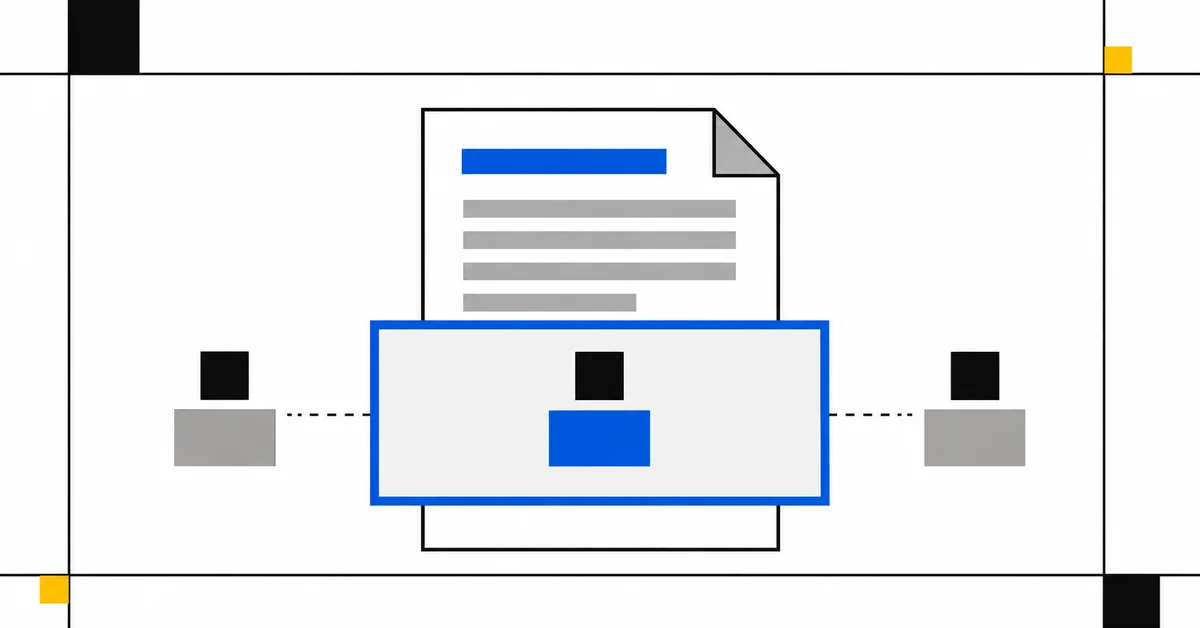
An agent is Copilot narrowed down. You give it a purpose, some instructions and a set of documents to work from. It can then answer questions using those sources. Test the boundaries: it may still misunderstand a question or answer outside the intended scope.
Example: a “staff handbook” agent that answers “how do I book holiday?” or “what is the mileage rate?” from your actual policies.
Good for: questions that get asked repeatedly and are already answered in a document somewhere.
You build simple ones in Copilot itself, by describing what you want. More involved ones are built in a separate tool, Copilot Studio.
A workflow: something that happens on its own
A workflow is a set of steps that runs on a schedule or when something happens. Microsoft introduced a Workflows agent that builds these from a description, for tasks such as sending reminders, managing calendars and posting team updates.
Example: “Every Friday at four, send me a summary of this week’s emails from our three biggest customers.”
Good for: routine chasing and reporting that someone currently does by hand.
If you have used Power Automate, this is the same idea with a simpler way in.
An app: a small tool with its own screen
Apps in Microsoft Copilot Studio can create a working app from a plain-English description. You can preview it, ask for changes, then publish and share it with people in your organisation. It is currently in preview, so check availability and test it carefully before relying on it.
Example: describe a site-visit log with the customer, date, person attending and findings. Start with sample data, check the result against how the team actually works, and confirm who can see the underlying information.
Example: “A tool for logging site visits, with the customer, the date, who went and what was found.”
Good for: small internal tools that would otherwise be another spreadsheet.
What you need
Check the licence and settings for each tool. Agent, workflow and app features have different requirements. Ask your administrator which are enabled, who can use them and whether usage-based charges apply.
The older App Builder agent is retiring; app creation is not. Microsoft’s migration guidance says editing in that older agent ends after 30 November 2026 and access to its apps ends after 31 December 2026. Existing apps need to be migrated or downloaded. The newer Apps experience in Copilot Studio is a separate route. It uses usage-based Copilot Credits for building, previewing, testing and using apps. Availability depends on your organisation’s setup.
Your administrator is in control. They can decide who may build agents and which ones are shared. In a small business, agree this before people start.
Get the foundations right first
An agent answers from the documents it can reach. Two things follow.
Permissions. Microsoft 365 Copilot generally respects each person’s existing access, but agents and their connected data sources can have different sharing and authentication settings. Check both the source and the agent. Files shared too widely can become easier to find. Check who can see your files before you build anything.
Accuracy. An agent pointed at a folder with three versions of the holiday policy will answer from any of them. Give it one current document. If the source is wrong, the answer will be wrong and will sound confident.
A sensible first one of each
Agent. Pick one well-maintained document set that people ask about often: the staff handbook, your standard terms, product specifications. Build an agent on that alone. Ask it twenty real questions and check every answer against the source before sharing it.
Workflow. Pick a reminder or a weekly summary that goes only to you. Nothing that sends to customers. Run it for a month and see whether you act on it.
App. Pick a small internal log that is currently a notebook or a private spreadsheet. If an existing list does not do the job, describe the process in Copilot Studio and try its preview with sample data. Agree who owns the app, check permissions and test the result before the team relies on it.
In each case you are starting where a mistake costs little.
Where to be careful
Anything that acts on its own. A workflow that sends email, changes a calendar or updates a record can do the wrong thing many times before anyone notices. Keep a person in the loop for anything a customer sees. Our piece on where AI needs a human check covers how.
Sprawl. These are easy to make. In a year you could have thirty, built by ten people, with no list. Give each one an owner and keep a simple register. The checklist in Automate a task without creating a new mess applies here unchanged.
Outgrowing it. A prototype is not automatically ready for important work. If a tool becomes business-critical or needs to connect to your accounts system, consider a maintained low-code or custom app.
Leavers. Find out what happens to an agent, workflow or app when the person who built it leaves. Add it to the leavers checklist.
If you are on Google Workspace
Google’s counterpart is Workspace Studio, a tool for building automations and agents across Gmail, Drive and the other Workspace apps. Google states it is generally available and included in Business and Enterprise plans, so many businesses already have it.
One change to know about. Google’s reusable assistants, called Gems, are being replaced by “skills”. Its September 2026 update says Gems are being phased out, with remaining Gems in the Gemini app eventually converted to draft skills. If your team has built Gems, list them and plan to recreate the ones you rely on.
For small apps, Google’s tool is AppSheet.
If you use Claude
Claude Cowork can carry out multi-step tasks using connected tools. Its approval behaviour depends on the permission mode and administrator settings; do not assume every action requires a prompt.
Anthropic has also announced Claude Duet, a separate app in which Claude acts as a proactive agent: it brings you what needs attention, such as a morning briefing, and works on tasks in the background. Anthropic has said it is designed for professionals and small businesses.
Availability and access may change. Check Anthropic’s current information before planning work around it.
How to choose
Do not choose by feature list. Start from where your email and files already are.
- On Microsoft 365 with Copilot licences: start with Copilot’s own tools.
- On Google Workspace: start with Workspace Studio.
- Using Claude or ChatGPT alongside either: fine for individual work, but think harder before connecting them to company data.
Then ask the question that matters more than the tool: is this a job worth doing at all? An agent that answers questions about a confusing process is less use than a clearer process. Simplify first, then automate what is left.