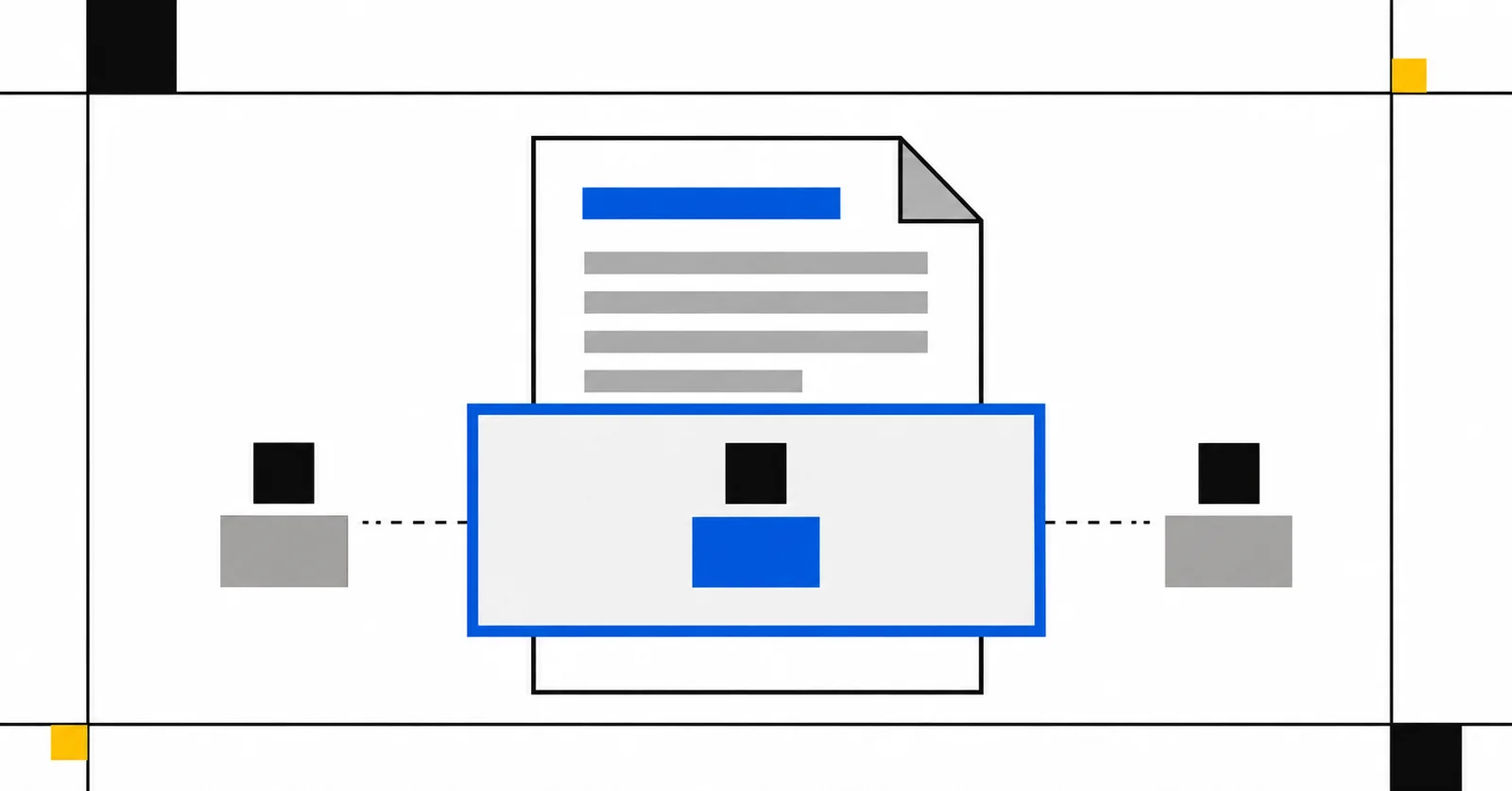
Before asking Copilot to find information for your team, check who can already see that information.
Microsoft 365 Copilot works within a user’s existing permissions. It does not give that person access they do not have, but it can make a file that was shared too widely easier for them to find. Microsoft explains how existing permissions and oversharing affect Copilot.
Start with the files that matter most
List the places you keep sensitive information: staff records, financial plans, customer contracts or confidential project files. For each area, identify who is responsible for it and who needs access.
Look at the members of the relevant Teams and SharePoint sites, as well as sharing links and exceptions on individual folders or files. A link created for one job may still be usable long after that job has finished.
Review access with the owner
Ask the person responsible for each site or folder whether its membership is still right. With their authorisation, check a sample using accounts with different roles. If access is too broad, agree the change with the owner and test it. Someone may rely on access that is not obvious at first glance.
Microsoft has more detailed guidance on finding and fixing oversharing. Some reports and controls depend on your licences and setup; you can still begin by asking who should have access and checking the areas that matter most.
Introduce Copilot with a few useful tasks
Pick a small group and work through tasks they already do. Agree what information they may use, how they should check an answer and where to raise a concern. Review what worked and what needs changing before extending the rollout.
File permissions are one part of the job. Account security, data handling, staff training and the configuration of the Copilot product you use matter too. A short AI use policy can help the team understand what is expected.