A lot of what a small business decides is said out loud on a call and written down by nobody. Teams can record the meeting, write out who said what, and let Copilot answer questions about it afterwards.
These are three separate features. They are switched on in different places and need different licences. Most of the confusion comes from treating them as one.
Three things, not one
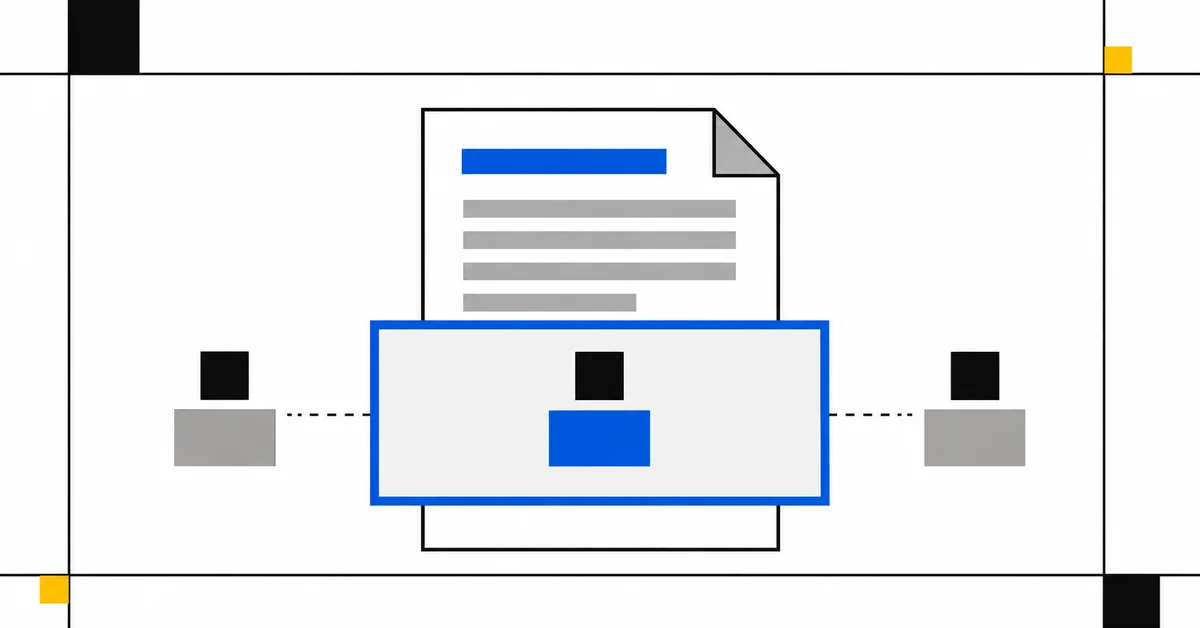
Recording is the video and audio of the meeting, saved as a file.
Transcription is the written record: who spoke and what they said. You can transcribe without recording.
Copilot is the assistant that reads the transcript and answers questions about it. “What did we agree?” “What is still open?”
Recording and transcription depend on your Teams licence, meeting type and administrator settings. Copilot in Teams needs a paid Microsoft 365 Copilot licence for each person who wants to use it. Check Microsoft’s pricing page for the current options.
A business without Copilot may still be able to transcribe meetings, depending on its Teams licence, meeting type and administrator settings. Check the actual transcript for missed or misheard details.
Before the meeting
When you schedule a meeting, open Meeting options. Two settings matter.
Record and transcribe automatically. Useful for regular meetings where you always want a record. For one-off calls, starting it by hand is fine.
Copilot. If you have a licence, there are three choices, and they behave differently:
- During and after the meeting. Copilot needs a transcript, and you can go back to it afterwards.
- Only during the meeting. Copilot works live without keeping a transcript. Microsoft says Copilot is not available in the meeting recap afterwards unless recording or transcription is turned on. Prompts and responses may still be retained under your organisation’s compliance policies; check those before using it for sensitive conversations.
- Off.
If you do not see these options, check your meeting type, licence and administrator policies.
During the meeting
To start by hand, choose More, then Record and transcribe. You can start both, or the transcript alone.
Tell people first. Teams shows everyone a notice when recording or transcription starts, but say it out loud as well, and say why. “I’m going to transcribe this so we have the actions written down. Is everyone happy with that?” If someone objects, respect it.
If you have Copilot, you can ask it things while the meeting is running. The answers are shown only to you. A late joiner can ask what they missed. Before closing, try “list the actions and who owns them” and read it back to the room. People correct it on the spot, which is the best check you will get.
After the call
Open the meeting in your Teams calendar or chat and go to the Recap tab. That is where the recording, the transcript and Copilot sit together.
Questions that tend to earn their keep:
- “What decisions were made?”
- “List the actions, with an owner for each.”
- “What questions were raised and not answered?”
- “What did the customer say about delivery dates?”
- “Draft a follow-up email summarising what we agreed.”
Then do the part Copilot cannot. Check it against the transcript and, where needed, the people involved. It can attribute a remark to the wrong person, miss a decision that was implied but never stated, or turn a passing comment into an action. Fix it before it goes to anyone. For more on this, see Where AI needs a human check.
Copilot elsewhere in Microsoft 365 can also draw on transcripts you have access to. That is useful a month later when you cannot remember which call something was agreed on.
Where it all goes
Storage. Microsoft’s documentation says a recording is saved to the organiser’s OneDrive, or to the channel’s SharePoint site for a channel meeting.
Who can see it. Access depends on the meeting options, permissions and sharing settings. The organiser can restrict access; check before sharing with guests or colleagues.
How long it lasts. When automatic expiration is enabled, Microsoft documents a default of 120 days, with exceptions and administrator controls. Check the actual expiry, retention rules and access before keeping or moving a recording.
When people leave. A recording in a leaver’s OneDrive goes with their account. Add it to your leavers checklist.
Limits worth knowing
- Someone else’s meeting. Microsoft says Copilot will not work in meetings hosted outside your organisation. If a customer hosts the call, your Copilot is not available. Their organiser controls recording too.
- Each user needs their own licence to ask Copilot questions.
- Accents, crosstalk and poor audio reduce accuracy. A decent microphone helps more than any setting.
- Trade terms and names are often misheard. Check them.
Decide your house rules
A recording of a meeting is personal information about the people in it. Treat it that way.
Agree a few things and write them down:
- which meetings you record by default, and which you never do. Most businesses keep one-to-ones, HR matters and anything about an individual’s health or performance off the record.
- that customers and suppliers are told, and why
- how long recordings are kept
- who may share one outside the meeting
A paragraph in your AI use policy is enough. If you record calls with the public routinely, take advice on what you need to tell them.
If you use Google Meet
The equivalent is “Take notes for me”. Gemini writes the notes into a Google Doc, saved to Drive, and sends a link after the meeting. Everyone in the call is told that notes are being taken. Recording and transcripts are separate options, as in Teams.
Which Workspace plans include it has changed more than once, so check Google’s current help page against your edition.
If you use something else
General assistants such as Claude or ChatGPT can summarise a transcript you give them. Before you paste one in, make sure the tool and the account are approved in your policy. A meeting transcript is full of names and opinions.
Start small
Pick one regular internal meeting. Transcribe it for a month. Use the transcript, or Copilot if you have it, to produce the actions, and see whether fewer things get dropped.
If it helps, extend it. If the notes are no better, stop and review whether keeping a transcript is worthwhile.