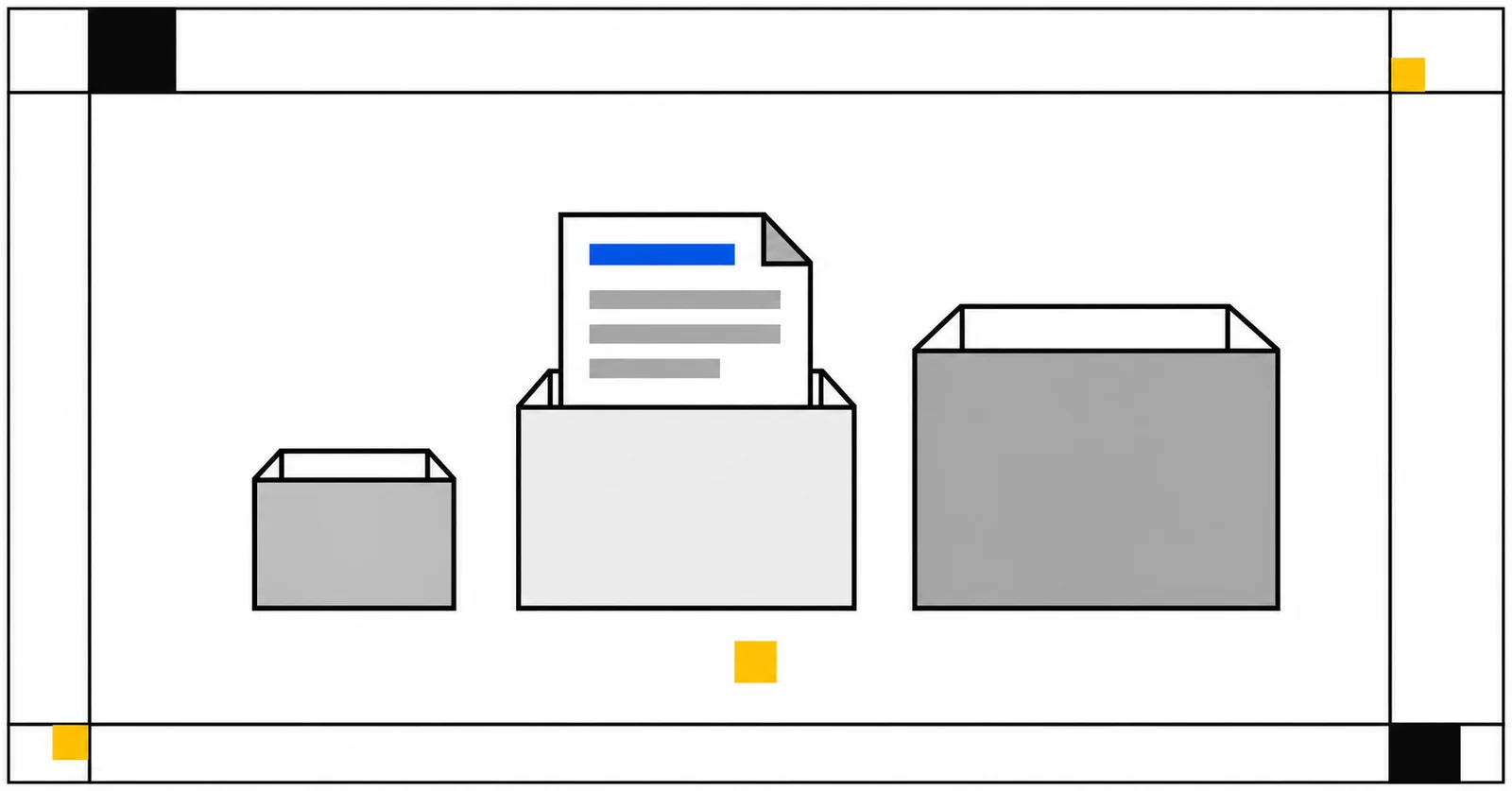
Microsoft 365 gives you three places to put a file, and they look more different than they are. The result in many businesses is the same document saved in all three, with nobody sure which is current.
One rule sorts most of it out: a file should live with whoever owns it.
The three places
OneDrive is yours. It is personal storage attached to your account. Files there are private until you share them.
SharePoint is the team’s or the company’s. A SharePoint site holds files that belong to a group, not a person.
Teams is a way in, not a separate place. This is the part that confuses people. Channel files in Teams are stored in SharePoint. Standard channels use the team site; private and shared channels have their own sites and membership. When you send a file in a private chat, it is stored in your own OneDrive and shared with the people in the chat.
So there are really two homes: yours and the group’s. Microsoft’s own advice follows the same line: save to OneDrive when you are working alone, and to where your team works when you are working together.
Use the rule
Ask who the file belongs to.
- Just me, for now. A draft, working notes, something half finished. OneDrive.
- A team or a project. Quotes for a job, the rota, a project plan. The team’s channel in Teams, which puts it in that team’s SharePoint site.
- The whole business. Policies, templates, the staff handbook, price lists. A SharePoint site that everyone can read and a few people can change.
Then ask one more question: would this file still matter if I left? If yes, it should not be in your OneDrive.
Why it matters
People leave. OneDrive is tied to a person’s account. When that account is closed, the files in it are on a countdown to deletion unless someone moves them. A price list that only ever lived in one person’s OneDrive is a problem waiting for their last day.
Chat is not a filing system. A file uploaded to a private chat is generally stored in the sender’s OneDrive and shared with the chat. It may become inaccessible when that account is removed unless someone deals with it. If a file matters, put it in the channel and link to it from the chat.
Copies drift. Emailing an attachment, or downloading a file and uploading it somewhere else, makes a second version. Share a link to the one file instead.
Where it lives decides who sees it. A file in a standard team channel is usually available to team members; private and shared channels have different membership. Check the actual permissions and sharing links against who needs access. If you are planning to use Copilot, this becomes more pressing: see Before using Microsoft 365 Copilot, check who can see your files.
Tidying up what you have
You do not need a migration project. Start small.
- List the shared files the business depends on. Ten or twenty is enough to begin. Templates, trackers, price lists, key spreadsheets.
- Find where each one lives now. Expect some surprises.
- Move the ones that sit in a personal OneDrive to the right team or company site. Use the built-in Move option where appropriate, and check permissions, links and version history after the move; behaviour can depend on the source, destination and method.
- Tell people where things are now. A one-line message per file is enough.
- Agree the rule and write it down in two or three sentences.
Keep the structure plain
It is tempting to build a deep folder tree and a team for every topic. Resist it. A few teams that match how the business is organised, with a handful of clearly named channels, will be used. Forty teams will not.
If someone asks “where does this go?” and the answer is not obvious, that is a sign the structure needs simplifying, not that the person needs more training.